


Python自动化:图片转Excel终极方案,多模态大模型+Python ,扫描件→可编辑Excel只需3秒!
将图片转换为表格一直是我们数海丹心社区群里备受关注的话题,也是讨论度最高的话题之一,一直以来大佬们也是试了各种方式,都没有很好的解决这个难题,最近,随着我对大语言模型和多模态模型的深入研究,最终很好的解决了这个问题。
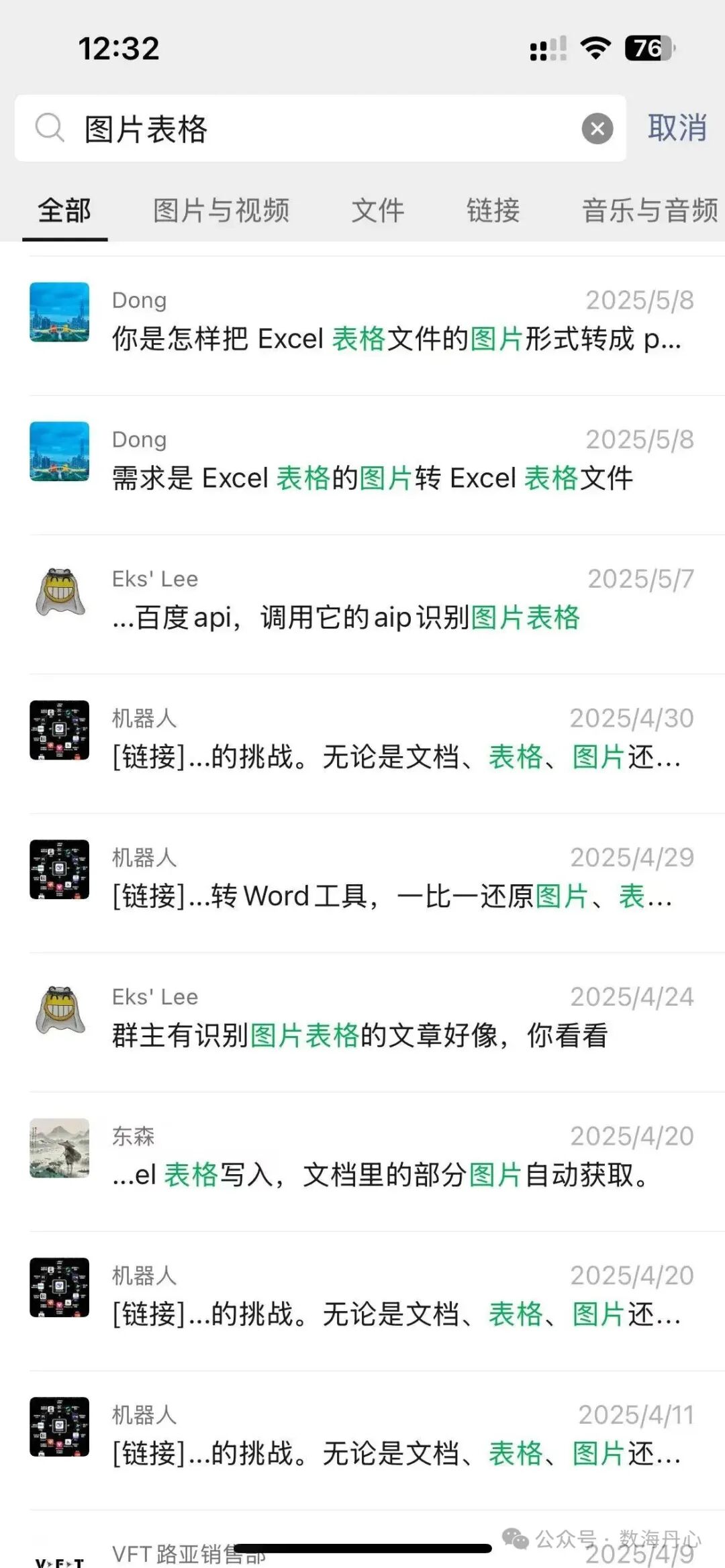
我们常常遇到需要将扫描的表格、截图或照片中的数据转换为Excel表格进行进一步处理的情况。然而,传统的OCR工具如uniocr虽然能够识别文字,但精度不高,且难以还原表格结构。而像paddleocr或微信ocr这样的工具,虽然能够识别文字,却无法将识别结果还原成表格格式,这无疑增加了我们的工作量。
随着大语言模型,尤其是多模态大语言模型的快速发展,这一问题终于迎来了解决方案。阿里云推出的Qwen-VL系列模型,不仅能够识别图片中的文字,还能理解其结构,实现图片到Excel的直接转换,并且成本极低。
Qwen-VL系列模型是专为多模态任务设计的大模型,它能够处理包括表格、文档、试题、手写体在内的多种图像内容。与传统OCR工具相比,Qwen-VL在表格识别方面具有显著优势:
高精度识别:不仅识别文字,还能理解表格结构,准确还原合并单元格和多级表头。
低成本:使用成本远低于传统OCR服务,个人和小团队也能轻松负担。
易于集成:提供API接口,开发者可以轻松集成到自己的应用中。
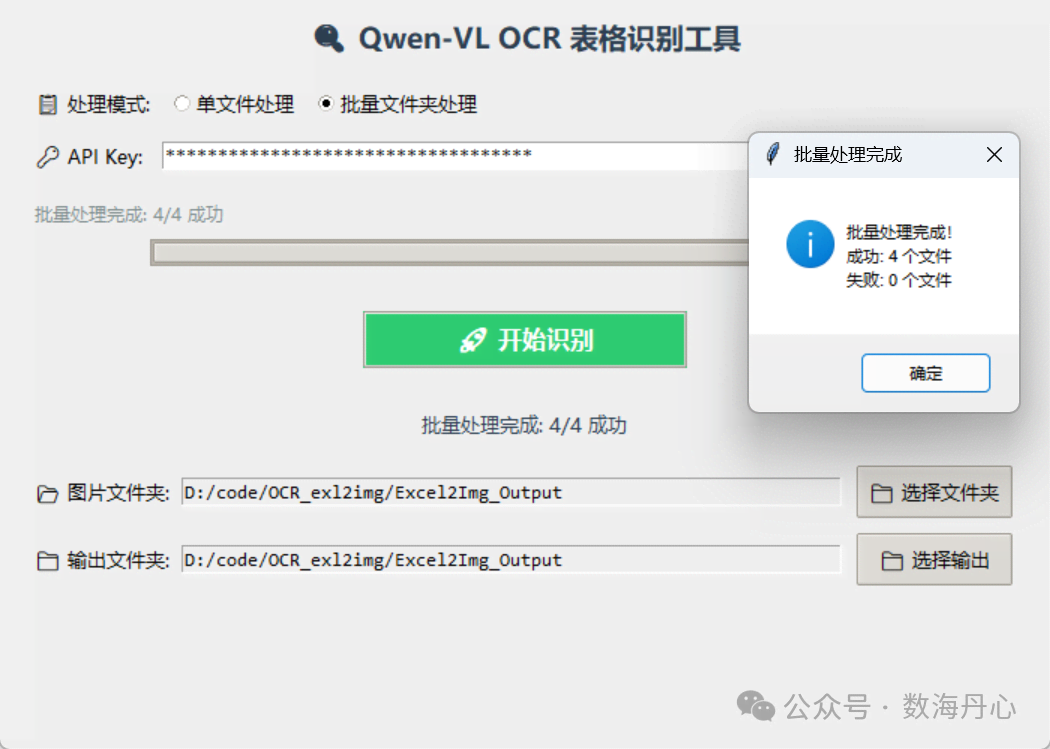
多功能支持:支持单图片和批量图片识别
Qwen-VL模型通过分析图片内容,理解其中的表格结构,然后将识别结果输出为CSV格式,最后转换为Excel文件。这一过程涉及到图像处理、自然语言理解和文本生成等多个技术领域。
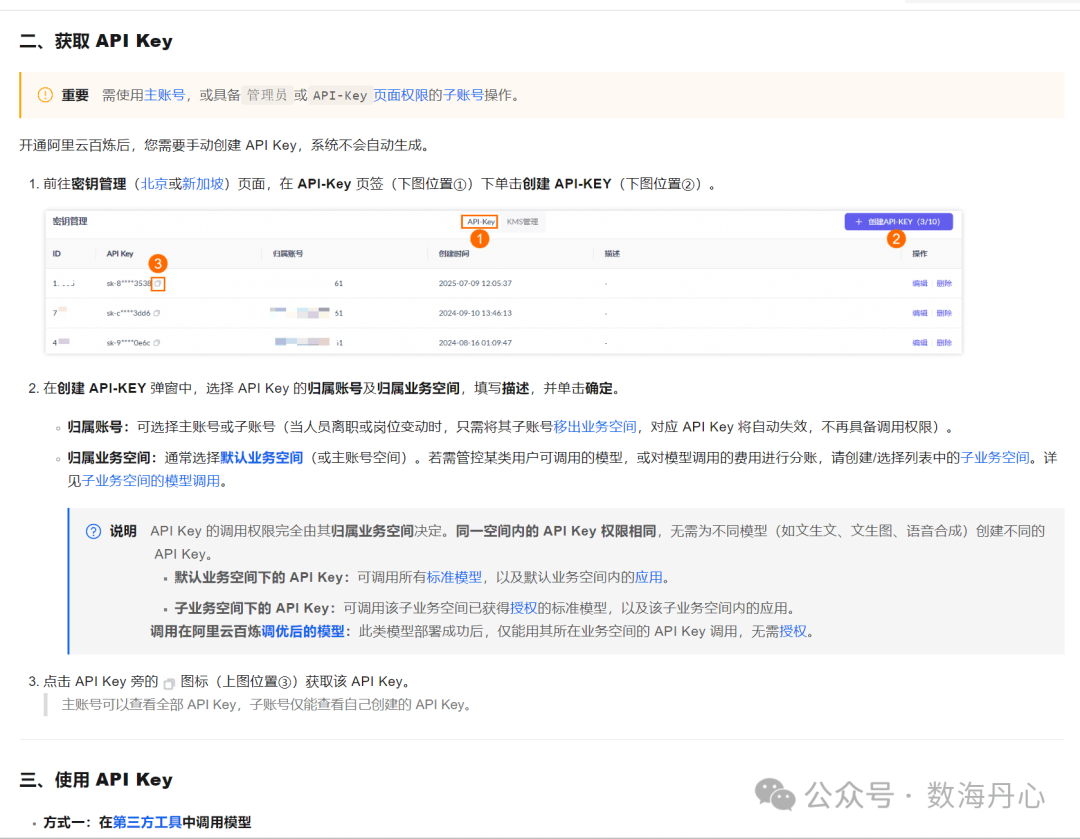
获取API Key:访问阿里云帮助文档获取您的API Key【https://help.aliyun.com/zh/model-studio/get-api-key】。

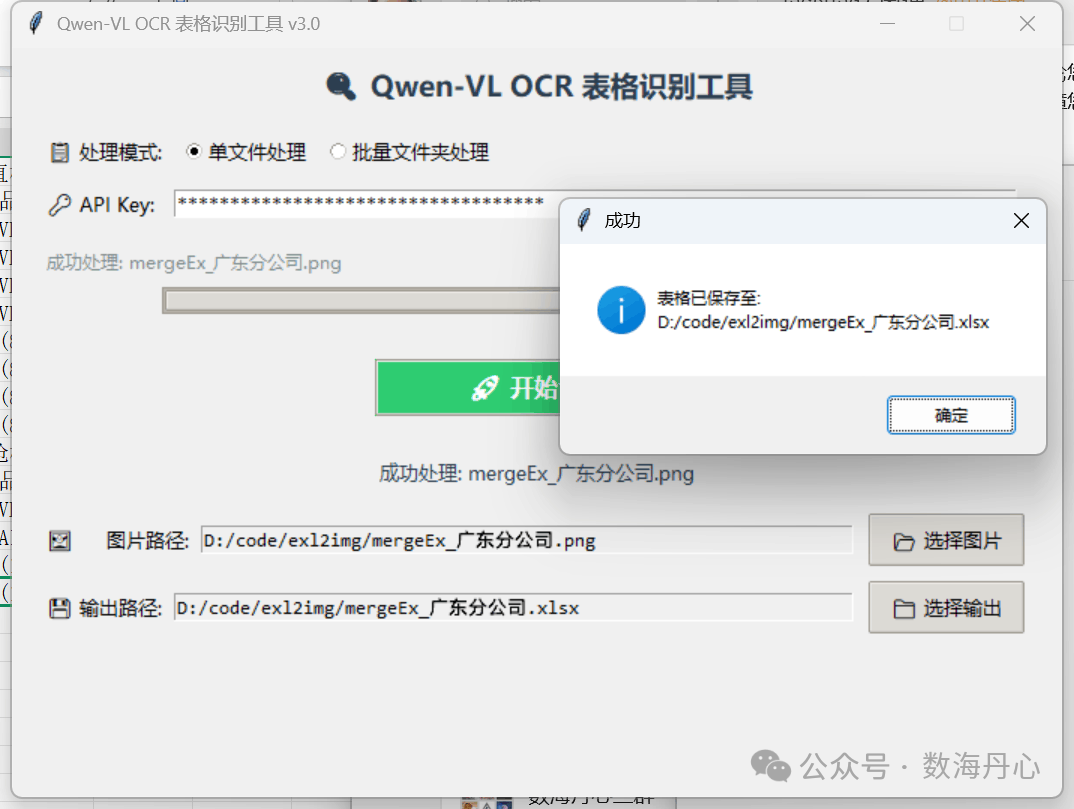
选择图片:通过GUI选择需要转换的图片文件。
指定输出路径:设置转换后的Excel文件保存路径。
一键转换:点击“开始识别”按钮,等待转换完成。
示例代码
import osimport base64import tkinter as tkfrom tkinter import ttk, filedialog, messageboxfrom openpyxl import Workbookimport csvimport time# ========== GUI 主程序 ==========class OCRApp:def __init__(self, root):self.root = rootself.root.title("Qwen-VL OCR 表格识别工具 v3.0")self.root.geometry("700x500")self.root.resizable(False, False)self.root.configure(bg="#f0f0f0")# 设置样式style = ttk.Style()style.theme_use('clam')style.configure("TButton", font=("微软雅黑", 10), padding=5)style.configure("TLabel", font=("微软雅黑", 10), background="#f0f0f0")style.configure("TEntry", font=("微软雅黑", 10), padding=3)style.configure("TProgressbar", thickness=8)style.configure("Green.TButton", background="#2ecc71",foreground="white", font=("微软雅黑", 12, "bold"))style.configure("Radio.TRadiobutton",background="#f0f0f0", font=("微软雅黑", 10))# 标题title_label = tk.Label(root, text="🔍 Qwen-VL OCR 表格识别工具",font=("微软雅黑", 14, "bold"), bg="#f0f0f0", fg="#2c3e50")title_label.pack(pady=10)# 处理模式选择frame_mode = tk.Frame(root, bg="#f0f0f0")frame_mode.pack(pady=5, fill="x", padx=20)tk.Label(frame_mode, text="📋 处理模式:", font=("微软雅黑", 10), bg="#f0f0f0").pack(side="left")self.process_mode = tk.StringVar(value="single")ttk.Radiobutton(frame_mode, text="单文件处理", variable=self.process_mode,value="single", style="Radio.TRadiobutton",command=self.toggle_process_mode).pack(side="left", padx=10)ttk.Radiobutton(frame_mode, text="批量文件夹处理", variable=self.process_mode,value="batch", style="Radio.TRadiobutton",command=self.toggle_process_mode).pack(side="left")# API Key 输入框frame_api = tk.Frame(root, bg="#f0f0f0")frame_api.pack(pady=5, fill="x", padx=20)tk.Label(frame_api, text="🔑 API Key:", font=("微软雅黑", 10), bg="#f0f0f0").pack(side="left")self.api_key_entry = tk.Entry(frame_api, width=40, show="*", font=("Consolas", 10))self.api_key_entry.pack(side="left", padx=10, expand=True, fill="x")# 单文件处理 - 图片选择self.frame_single_image = tk.Frame(root, bg="#f0f0f0")self.frame_single_image.pack(pady=5, fill="x", padx=20)tk.Label(self.frame_single_image, text="🖼️ 图片路径:", font=("微软雅黑", 10), bg="#f0f0f0").pack(side="left")self.image_path_var = tk.StringVar()self.image_entry = tk.Entry(self.frame_single_image, textvariable=self.image_path_var, width=30, font=("Consolas", 10), state='readonly')self.image_entry.pack(side="left", padx=5, expand=True, fill="x")ttk.Button(self.frame_single_image, text="📂 选择图片",command=self.select_image).pack(side="left", padx=5)# 单文件处理 - 输出路径self.frame_single_output = tk.Frame(root, bg="#f0f0f0")self.frame_single_output.pack(pady=5, fill="x", padx=20)tk.Label(self.frame_single_output, text="💾 输出路径:", font=("微软雅黑", 10), bg="#f0f0f0").pack(side="left")self.output_path_var = tk.StringVar()self.output_entry = tk.Entry(self.frame_single_output, textvariable=self.output_path_var, width=30, font=("Consolas", 10), state='readonly')self.output_entry.pack(side="left", padx=5, expand=True, fill="x")ttk.Button(self.frame_single_output, text="📁 选择输出",command=self.select_output).pack(side="left", padx=5)# 批量处理 - 文件夹选择self.frame_batch_folder = tk.Frame(root, bg="#f0f0f0")self.frame_batch_folder.pack(pady=5, fill="x", padx=20)self.frame_batch_folder.pack_forget() # 默认隐藏tk.Label(self.frame_batch_folder, text="📂 图片文件夹:", font=("微软雅黑", 10), bg="#f0f0f0").pack(side="left")self.folder_path_var = tk.StringVar()self.folder_entry = tk.Entry(self.frame_batch_folder, textvariable=self.folder_path_var, width=30, font=("Consolas", 10), state='readonly')self.folder_entry.pack(side="left", padx=5, expand=True, fill="x")ttk.Button(self.frame_batch_folder, text="📁 选择文件夹",command=self.select_folder).pack(side="left", padx=5)# 批量处理 - 输出文件夹self.frame_batch_output = tk.Frame(root, bg="#f0f0f0")self.frame_batch_output.pack(pady=5, fill="x", padx=20)self.frame_batch_output.pack_forget() # 默认隐藏tk.Label(self.frame_batch_output, text="📁 输出文件夹:", font=("微软雅黑", 10), bg="#f0f0f0").pack(side="left")self.batch_output_var = tk.StringVar()self.batch_output_entry = tk.Entry(self.frame_batch_output, textvariable=self.batch_output_var, width=30, font=("Consolas", 10), state='readonly')self.batch_output_entry.pack(side="left", padx=5, expand=True, fill="x")ttk.Button(self.frame_batch_output, text="📁 选择输出",command=self.select_batch_output).pack(side="left", padx=5)# 进度条frame_progress = tk.Frame(root, bg="#f0f0f0")frame_progress.pack(pady=10, fill="x", padx=20)self.progress_label = tk.Label(frame_progress, text="准备就绪...", font=("微软雅黑", 9), bg="#f0f0f0", fg="#7f8c8d")self.progress_label.pack(side="top", anchor="w")self.progress_bar = ttk.Progressbar(frame_progress, length=500, mode='determinate')self.progress_bar.pack(side="top", pady=5)# 开始按钮start_frame = tk.Frame(root, bg="#f0f0f0")start_frame.pack(pady=15)self.start_button = ttk.Button(start_frame, text="🚀 开始识别", command=self.start_processing, width=20)self.start_button.pack()self.start_button.configure(style="Green.TButton")# 状态标签self.status_label = tk.Label(root, text="", font=("微软雅黑", 10), bg="#f0f0f0", fg="#2c3e50")self.status_label.pack(pady=10)def toggle_process_mode(self):"""切换单文件/批量处理模式的UI显示"""mode = self.process_mode.get()if mode == "single":# 显示单文件处理UI,隐藏批量处理UIself.frame_single_image.pack(pady=5, fill="x", padx=20)self.frame_single_output.pack(pady=5, fill="x", padx=20)self.frame_batch_folder.pack_forget()self.frame_batch_output.pack_forget()else:# 显示批量处理UI,隐藏单文件处理UIself.frame_single_image.pack_forget()self.frame_single_output.pack_forget()self.frame_batch_folder.pack(pady=5, fill="x", padx=20)self.frame_batch_output.pack(pady=5, fill="x", padx=20)def select_image(self):path = filedialog.askopenfilename(title="选择表格图片",filetypes=[("Image Files", "*.png *.jpg *.jpeg *.gif *.bmp")])if path:self.image_path_var.set(path)# 自动设置输出路径output_path = os.path.splitext(path)[0] + ".xlsx"self.output_path_var.set(output_path)def select_output(self):path = filedialog.asksaveasfilename(title="选择输出 Excel 文件",defaultextension=".xlsx",filetypes=[("Excel 文件", "*.xlsx"), ("所有文件", "*.*")])if path:self.output_path_var.set(path)def select_folder(self):path = filedialog.askdirectory(title="选择图片文件夹")if path:self.folder_path_var.set(path)# 自动设置输出文件夹为图片文件夹self.batch_output_var.set(path)def select_batch_output(self):path = filedialog.askdirectory(title="选择批量输出文件夹")if path:self.batch_output_var.set(path)def image_to_base64(self, image_path):"""将本地图片转为 base64 字符串"""with open(image_path, "rb") as f:return base64.b64encode(f.read()).decode("utf-8")def update_progress(self, value, message):"""更新进度条和状态信息"""self.progress_bar['value'] = valueself.progress_label.config(text=message)self.root.update_idletasks()def process_single_file(self, api_key, image_path, output_path):"""处理单个图片文件"""try:# 延迟仅用于视觉效果,实际使用可删除time.sleep(0.2)# 导入OpenAI客户端(放在这里避免启动时就需要安装)from openai import OpenAI# 初始化客户端client = OpenAI(api_key=api_key,base_url="https://dashscope.aliyuncs.com/compatible-mode/v1")self.update_progress(30, "正在读取图片...")# 图片转 base64image_b64 = self.image_to_base64(image_path)self.update_progress(50, "正在调用模型识别...")# 构造多模态消息messages = [{"role": "user","content": [{"type": "image_url","image_url": {"url": f"data:image/png;base64,{image_b64}"}},{"type": "text","text": ("请识别这张图片中的表格内容,并以标准 CSV 格式输出,包含表头。\n""不要添加任何解释、前缀或后缀,只输出纯 CSV 内容。\n""例如:\n姓名,年龄,城市\n张三,25,北京\n李四,30,上海")}]}]# 调用 OCR 模型completion = client.chat.completions.create(model="qwen-vl-ocr-2025-04-13",messages=messages,max_tokens=4096,temperature=0.0)csv_text = completion.choices[0].message.content.strip()self.update_progress(80, "正在保存为 Excel...")# 解析 CSV 文本并保存为 Excelself.save_csv_to_excel(csv_text, output_path)return True, f"成功处理: {os.path.basename(image_path)}"except Exception as e:return False, f"处理 {os.path.basename(image_path)} 失败: {str(e)}"def save_csv_to_excel(self, csv_text, output_path):"""将CSV文本保存为Excel文件"""lines = csv_text.splitlines()if not lines:raise ValueError("模型未返回有效数据")# 创建工作簿wb = Workbook()ws = wb.active# 逐行写入for line in lines:row_data = line.split(',')ws.append(row_data)# 保存到文件wb.save(output_path)def start_processing(self):"""开始处理(单文件或批量)"""api_key = self.api_key_entry.get().strip()if not api_key:messagebox.showerror("错误", "请先输入 API Key!")returntry:self.update_progress(10, "正在初始化...")# 根据模式选择处理方式if self.process_mode.get() == "single":# 单文件处理image_path = self.image_path_var.get()output_path = self.output_path_var.get()if not image_path:messagebox.showerror("错误", "请选择图片文件!")returnif not output_path:messagebox.showerror("错误", "请选择输出文件路径!")returnsuccess, message = self.process_single_file(api_key, image_path, output_path)self.update_progress(100, message)self.status_label.config(text=message)if success:messagebox.showinfo("成功", f"表格已保存至:\n{output_path}")else:# 批量处理folder_path = self.folder_path_var.get()output_folder = self.batch_output_var.get()if not folder_path:messagebox.showerror("错误", "请选择图片文件夹!")returnif not output_folder:messagebox.showerror("错误", "请选择输出文件夹!")return# 获取文件夹中所有图片文件image_extensions = ('.png', '.jpg', '.jpeg', '.gif', '.bmp')image_files = [f for f in os.listdir(folder_path)if f.lower().endswith(image_extensions)and os.path.isfile(os.path.join(folder_path, f))]if not image_files:messagebox.showinfo("提示", "所选文件夹中没有图片文件!")self.update_progress(0, "准备就绪...")returntotal_files = len(image_files)success_count = 0error_messages = []# 批量处理每个文件for i, filename in enumerate(image_files, 1):try:# 更新总体进度overall_progress = 10 + (i / total_files) * 80self.update_progress(overall_progress,f"正在处理 {i}/{total_files}: {filename}")image_path = os.path.join(folder_path, filename)# 生成输出文件名(与图片同名,扩展名为xlsx)base_name = os.path.splitext(filename)[0]output_path = os.path.join(output_folder, f"{base_name}.xlsx")# 处理单个文件success, msg = self.process_single_file(api_key, image_path, output_path)if success:success_count += 1else:error_messages.append(msg)except Exception as e:error_messages.append(f"处理 {filename} 时出错: {str(e)}")# 处理完成self.update_progress(100, f"批量处理完成: {success_count}/{total_files} 成功")self.status_label.config(text=f"批量处理完成: {success_count}/{total_files} 成功")result_msg = f"批量处理完成!\n成功: {success_count} 个文件\n失败: {total_files - success_count} 个文件"if error_messages:result_msg += "\n\n错误详情:\n" + \"\n".join(error_messages[:5]) # 只显示前5个错误if len(error_messages) > 5:result_msg += f"\n... 还有 {len(error_messages) - 5} 个错误"messagebox.showinfo("批量处理完成", result_msg)except Exception as e:self.update_progress(0, f"❌ 错误: {str(e)}")messagebox.showerror("错误", f"处理失败:\n{str(e)}")# ========== 启动主程序 ==========if __name__ == "__main__":root = tk.Tk()app = OCRApp(root)root.mainloop()
使用Qwen-VL模型转换后的Excel文件,不仅数据准确无误,而且表格结构与原图完全一致,极大地提高了工作效率。无论是财务报表、合同文件还是其他任何需要表格化的数据,都能快速转换,省去了手动输入的时间。
如果你对Qwen-VL模型感兴趣,或者想要了解更多关于多模态大模型的应用,欢迎加入我们的微信公众号社区群。在这里,你可以获取最新的模型信息、技术分享和实用工具。
让我们共同期待,随着技术的不断进步,未来会有更多像Qwen-VL这样的模型出现,为我们的工作带来更多便利。
阅读原文:https://mp.weixin.qq.com/s/_XYZ4YqOZvCWj6ffyW3uZw